DevNook brings your code folders, preferred editors, and running services into one desktop app. Import a project, confirm a frontend or backend start, then read logs and investigate occupied ports in the same place.
Follow one set of demo projects through the current source interface. Screenshots use demo data; installer features follow the release notes for that version.
01 / DISCOVER & ORGANIZE
Find your projects. Choose what to import.
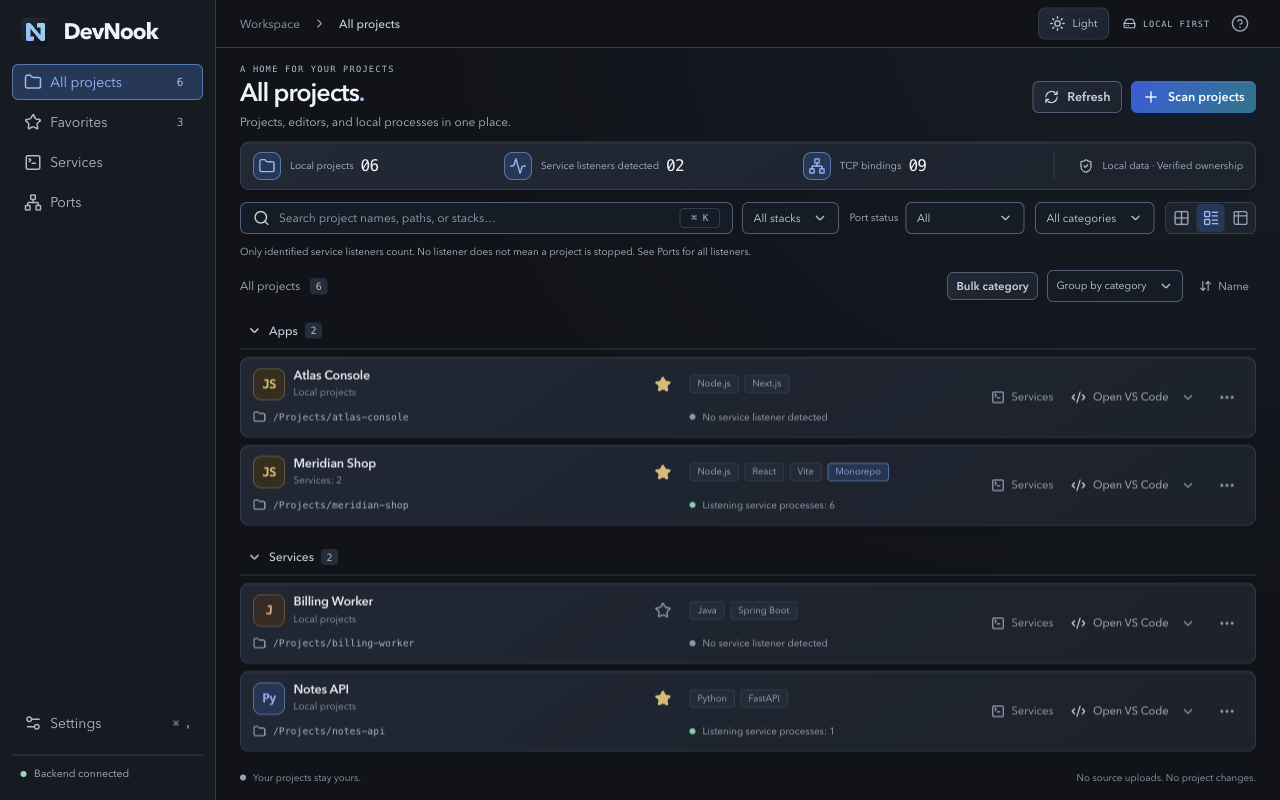
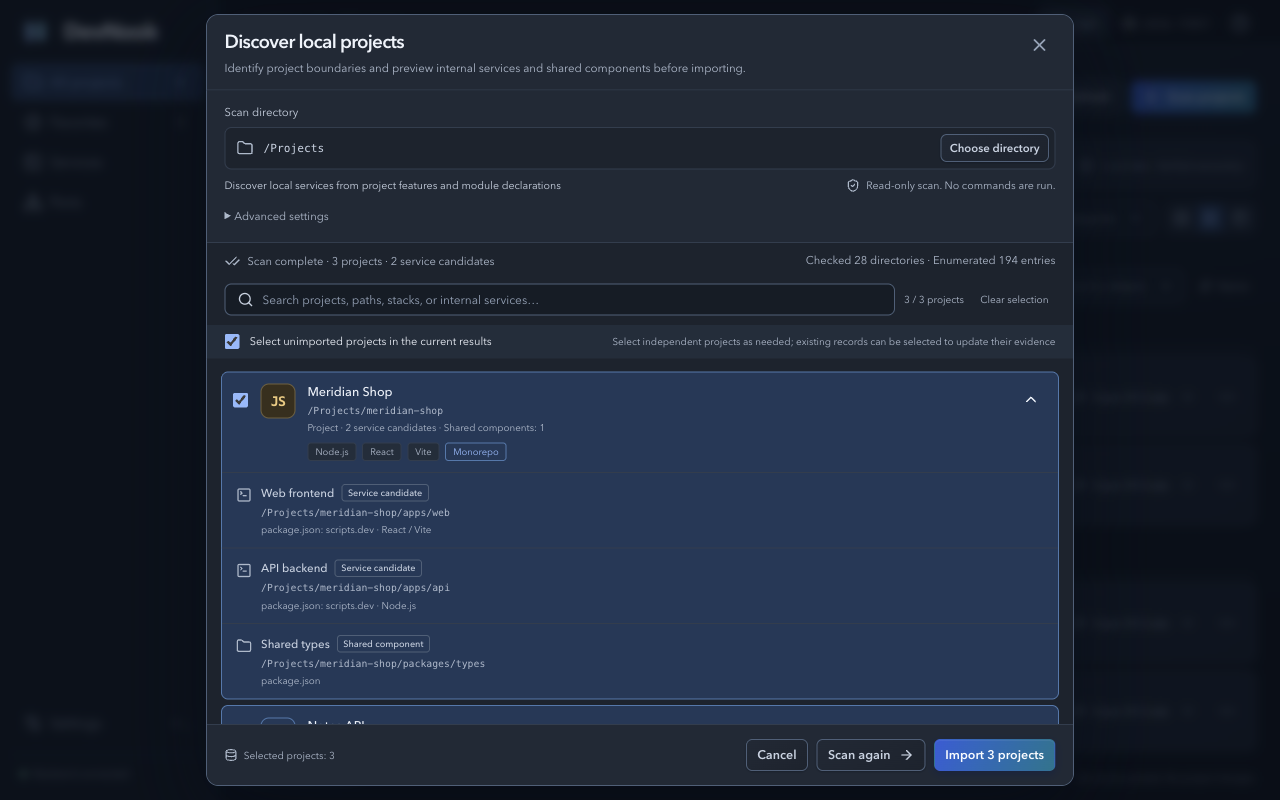
Select a code directory, review project candidates and their components, then import the ones you want. Frontends, backends, and shared packages can stay together; independent repositories can remain separate.
Search by name, path, stack, or listening status. Use favorites, categories, and bulk categorization.
Choose a compact list, cards, or a table. Open projects in installed apps such as VS Code, Cursor, and JetBrains IDEs.
Scanning and importing execute no project commands. Use a deeper scan for nonstandard layouts.
Import preview · Project boundaries, service candidates, and shared componentsFull size ↗
02 / SERVICES & LOGS
Find the service. See its run and page entry.
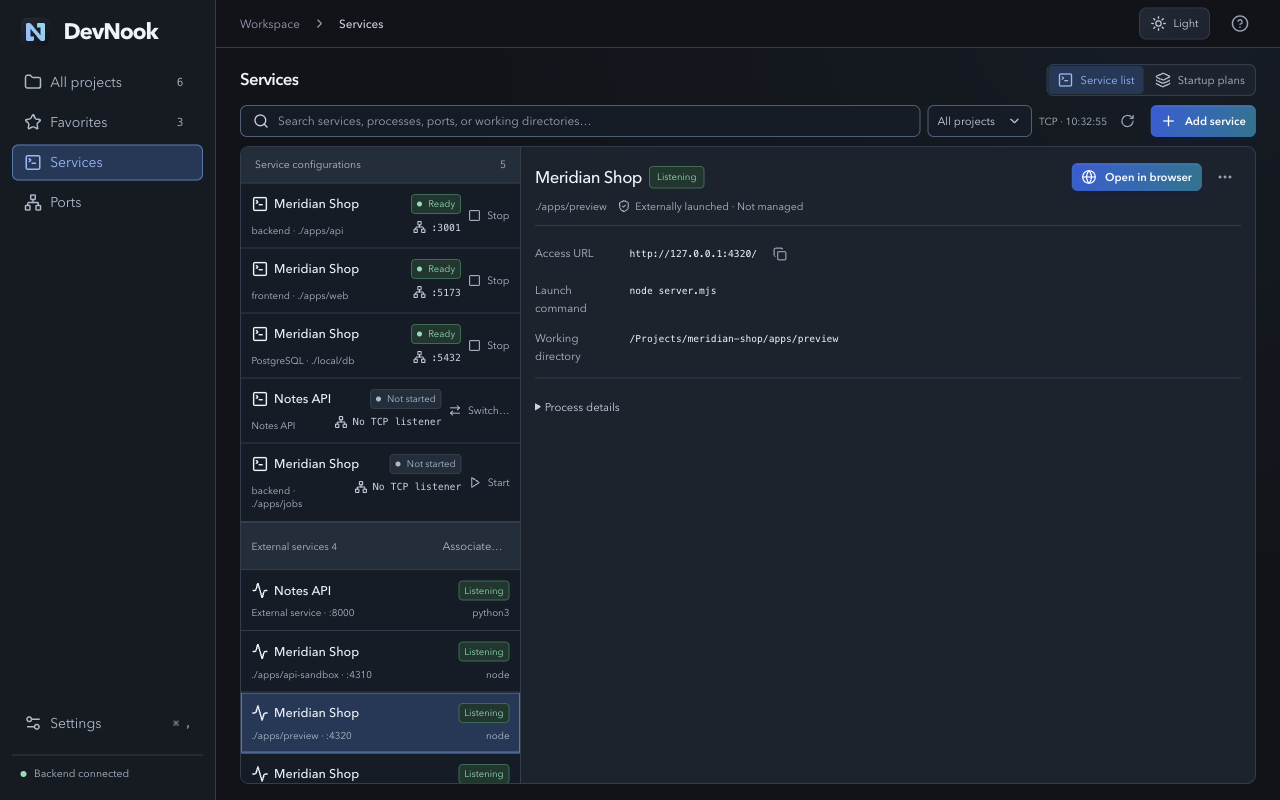
The global list leads with project names; project views lead with service names. Names, relative directories, and actual ports distinguish services, with details matching the current selection.
Start, stop, and restart registered services. Unstarted configurations and external instances remain distinct; port conflicts block startup.
Page entries use HTTP by default, with copyable URLs and HTTPS in the more menu. Custom Node web servers are supported too.
APIs without a root page show listeners. Unconfirmed entries still offer a browser attempt.
Read stdout / stderr by run and search logs. Started services continue after you close the window.
Reuse a saved configuration for an external service, then preview and separately confirm the switch. Saving configuration or using ordinary start never stops an external instance automatically.
Page entry · Project and component, HTTP URL, launch command, and directoryFull size ↗
03 / MENU BAR ACCESS
Check services without switching windows.
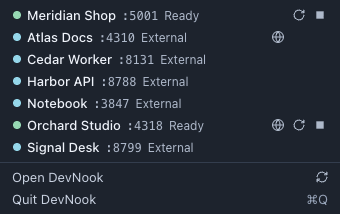
Click the N icon in the macOS menu bar for running services, services needing attention, and services in favorite projects. Single-service projects use one row; only multiple services need a project heading.
Check actual ports, jump to details, or gracefully stop a DevNook-managed run.
Long lists scroll above a fixed footer. Search projects, services, or ports; use ⌘F to bring up search.
Browser icons require a recently confirmed single web entry. APIs and unknown ports do not get a globe.
Start and restart still open confirmation in the main window. Reopen a closed window from the menu bar; quitting the GUI leaves running services active.
Menu bar panel · Compact services, actual ports and controls / Demo dataFull size ↗
04 / PORTS & PROCESSES
A port is occupied. See what is behind it.
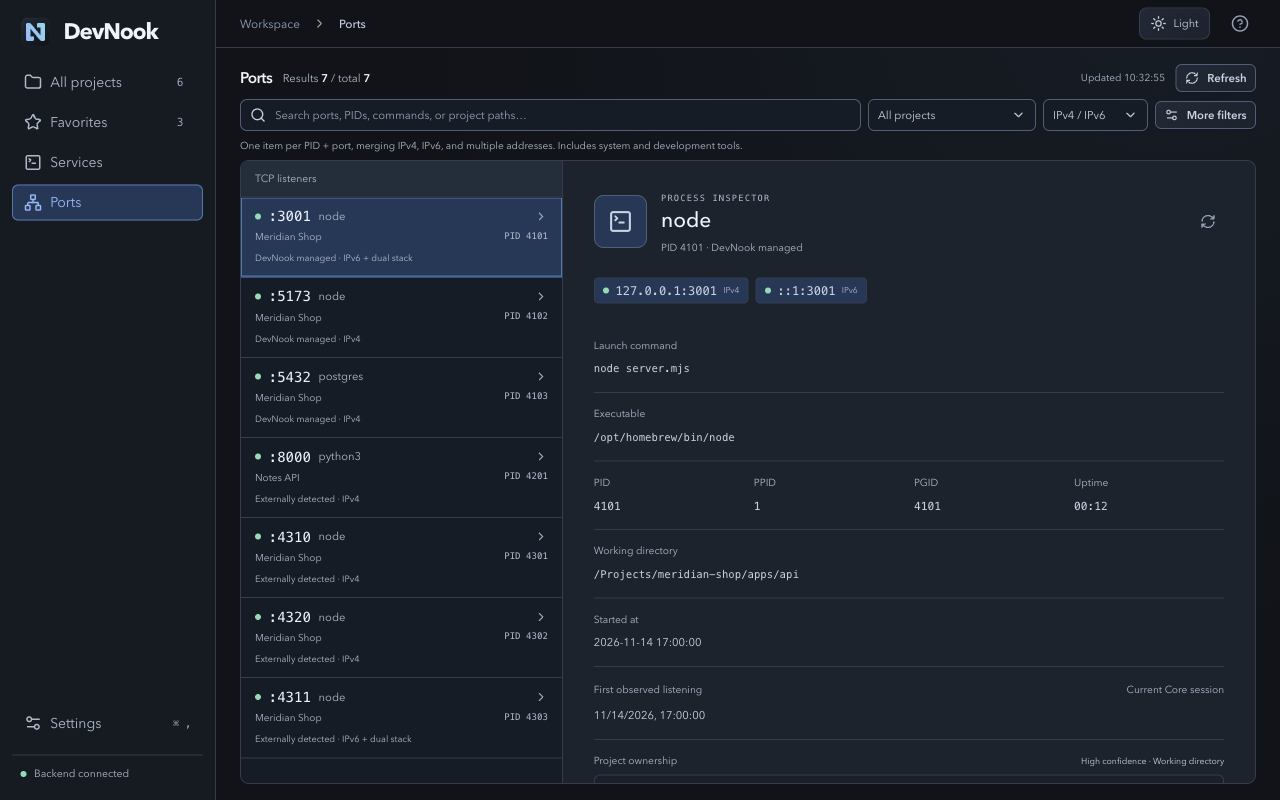
Trace a TCP listener to its process. Inspect the command, working directory, start time, and project ownership. Distinguish managed and externally started processes before acting.
Search ports, PIDs, commands, or paths. Combine project, address family, runtime, and other filters.
Group IPv4, IPv6, and multiple addresses. Project associations retain the current process identity.
No detected listener does not mean a project has stopped. Processes with unknown identity or unverifiable ownership remain read-only.
Port details · Listening addresses, process command, directory, and project ownershipFull size ↗
05 / MULTI-SERVICE STARTUP
Database first. Then your API and frontend.
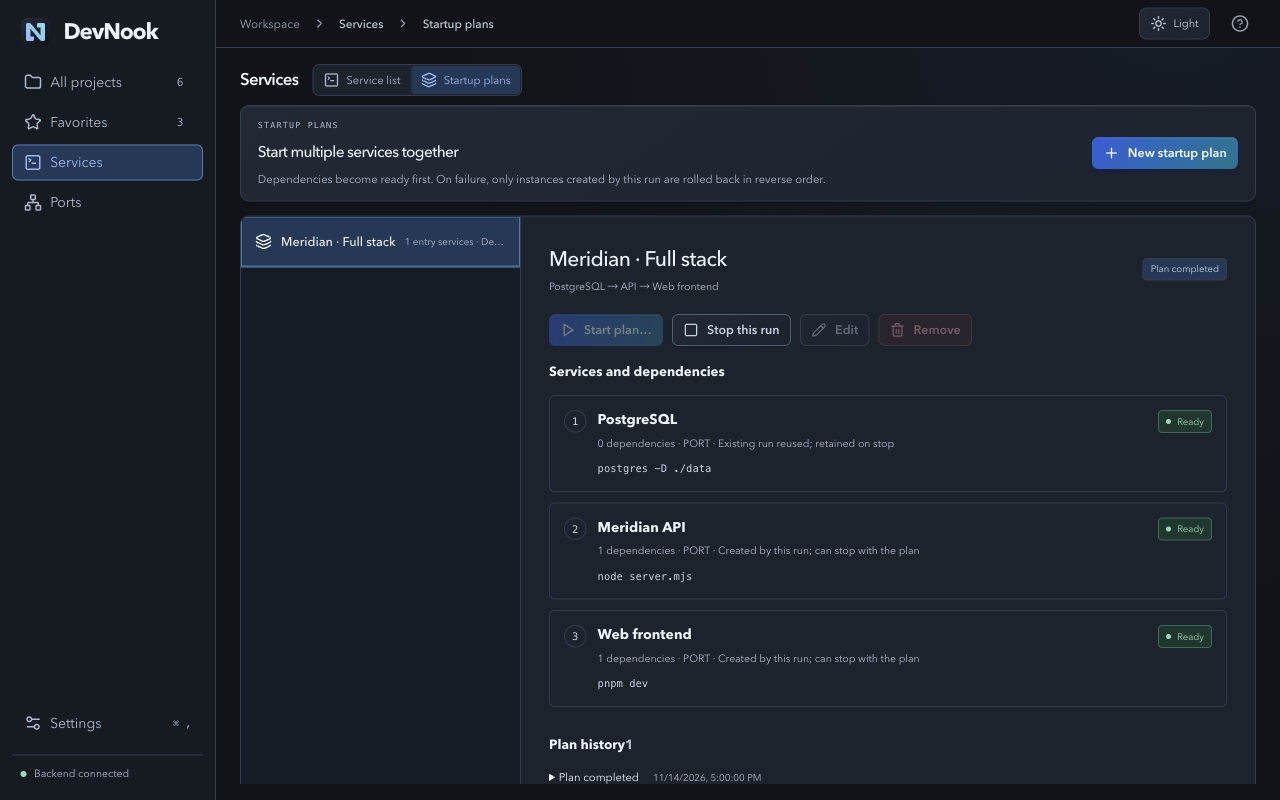
Combine registered services into a startup plan. Entry services can span projects. Dependencies expand automatically, and downstream services wait for upstream readiness.
Review the full plan, commands, directories, and readiness checks before confirming.
Reuse existing services. Failure or cancellation rolls back only runs created by this attempt.
Startup plans live inside Services. Saving a plan stores configuration without launching services.
Startup plan · Dependency order, readiness, and run ownershipFull size ↗
FIRST STEPS
Start with one code directory.
The desktop app handles project imports and services. AI assistant setup is optional.
01IMPORT
Scan and choose projects
Select a code directory. Review the candidates and components, then import the projects you want.
Directory → Candidate preview → Import
Read-only scanning
No project commands
02CONFIGURE
Review the launch command
Open a project’s services. Use a detected suggestion or enter a command. Expand advanced settings when needed, then confirm execution.
Open project → Save config → Confirm start
Saving does not run commands
Conflicts block startup
03USE
Read logs and actual listeners
Inspect output and run history, then open an available address. Investigate port conflicts in the Ports view.
Inspect run → Open browser / Trace port
Actual TCP listeners
Historical logs
Local development, with clear operating boundaries.
+Read-only discovery
Scanning executes no commands, reads no .env files, and follows no symlinks.
Saving and executing are separate. Stopping an external service requires identity checks and PID confirmation.
+Beyond the window
A separate backend keeps confirmed services and their logs running after the GUI closes.
TERMINAL & AI ASSISTANTS · OPTIONAL
The same state,beyond the desktop.
CLI and MCP give terminals and AI assistants access to the same projects, services, ports, and logs as the desktop. After switching to DevNook, copy the service’s handoff instructions so your assistant can continue using its saved configuration.
MCP is read-only by default. Service control requires an explicit scoped grant and the relevant confirmations. Instructions do not configure your AI client automatically, and ending a chat does not stop services.
Replace command with the absolute path to your local DevNook CLI.
03 / A FEW THINGS TO KNOW
Before you make yourself at home.
Which platforms are supported?+
DevNook targets macOS 12+ with separate Apple Silicon and Intel Mac installers. Intel builds are checked with Rosetta; Intel hardware and physical macOS 12 devices still need verification. Windows / Linux work will depend on community demand and maintainer capacity.
Will a scan change or run my project?+
No. Scans read manifests and directory metadata, and you review candidates before importing. Scanning, importing, and saving service configuration do not execute project commands.
Do services keep running after I close the window?+
Yes. Reopen the window from the menu bar N icon or Dock; quitting the app exits only the GUI. A separate Core and runner maintain confirmed services and logs. DevNook installs no system startup item. The backend can exit when no services are active and clients remain idle.
Can I keep using my editor and terminal?+
Yes. Open projects in installed editors and inspect external listeners started by a terminal or IDE. Associating a process with a project does not transfer ownership; stopping it still requires verification and confirmation.
Does switching stop the existing external service?+
Only clicking “Stop old instance and restart under DevNook” executes the switch. The preview shows the PID, command, and directory as read-only details. Core rechecks identity, requests a graceful stop, waits for exit and released ports, then starts a managed instance. Expect a brief interruption. Failure retains configuration without force-killing or automatically restoring the old instance.
Can Codex or another AI assistant still manage the service?+
Yes. Copy the handoff instructions from the service details and ask the original session to use DevNook CLI / MCP instead of repeating the old launch command. AI and desktop share the saved configuration and existing authorization and confirmation rules. Ending a chat does not stop the service automatically.
Does it support Chinese and English?+
Yes. The first launch uses Chinese only when the primary system language is Chinese, and English otherwise. Change it in Settings; DevNook remembers your manual choice. This site also has a Chinese edition.
Does no listener mean a project has stopped?+
No. Listening status describes an actual TCP snapshot. Workers, CLIs, and other background tasks may not listen on a port. Failed reads never establish that a project has stopped.
GET DEVNOOK
Make local development a repeatable routine.
Import a project you already work on. Start with one service.
macOS 12+ · Apple Silicon / Intel Mac · Simplified Chinese / English